Cerebras is the company behind the Wafer Scale Engine, and its Cerebras Inference service is known for very fast output. The API is OpenAI-compatible. New users can claim $5 in trial credits, which is enough for development testing and running demos.
The catch, up front (per the official Cerebras docs, September 2026):
- You have to add a payment card before the credits are issued. Adding a card doesn't charge anything, but without one your balance stays at 0 and every API call returns
402 Payment required - The trial credits expire 30 days after they're issued. Unused credit is gone after that, and it isn't reissued. Cerebras currently has no permanent free tier
- The trial tier only includes some models, and rate limits are tight (5 requests per minute per model)
If those terms work for you, read on. This post walks through signing up, adding a card to claim the credits, getting an API key, and making a first call with a few lines of code.
What you need
- A Google account (a GitHub account or a work email also works; the flow is almost identical)
- A payment card that passes online verification (Visa, Mastercard, etc.) to claim the trial credits
- Network access to
cloud.cerebras.aiandapi.cerebras.ai
Step 1: Open the console and sign in with Google
Open https://cloud.cerebras.ai/ in your browser. The middle of the page says "Sign up or log in". Sign-up and login share the same entry point, so just click GOOGLE.
A cookie prompt pops up in the bottom-right corner. Choosing "Reject All" (keeping only the necessary cookies) doesn't affect anything.
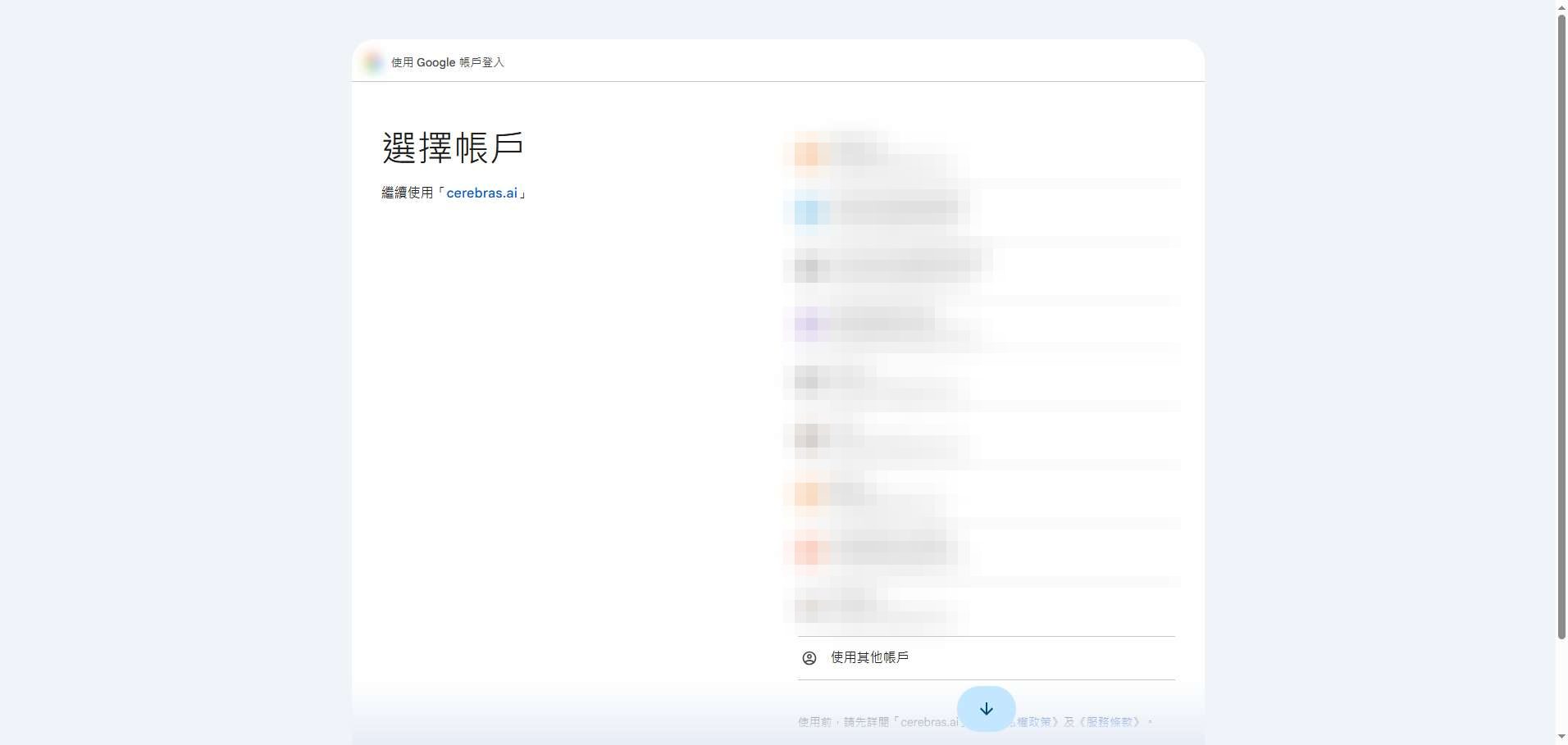
Step 2: Pick your Google account
You'll land on Google's account chooser. Click the account you want to register with. If you haven't signed into Google in this browser yet, you'll be asked for your Google credentials first.
Step 3: Let cerebras.ai read your basic profile
Google asks whether cerebras.ai may access your name, profile picture, and email address. That's the standard consent for third-party sign-in: read-only on those three items. It doesn't get your Google password, and it can't touch your Drive or email. Click "Continue" if that looks right.
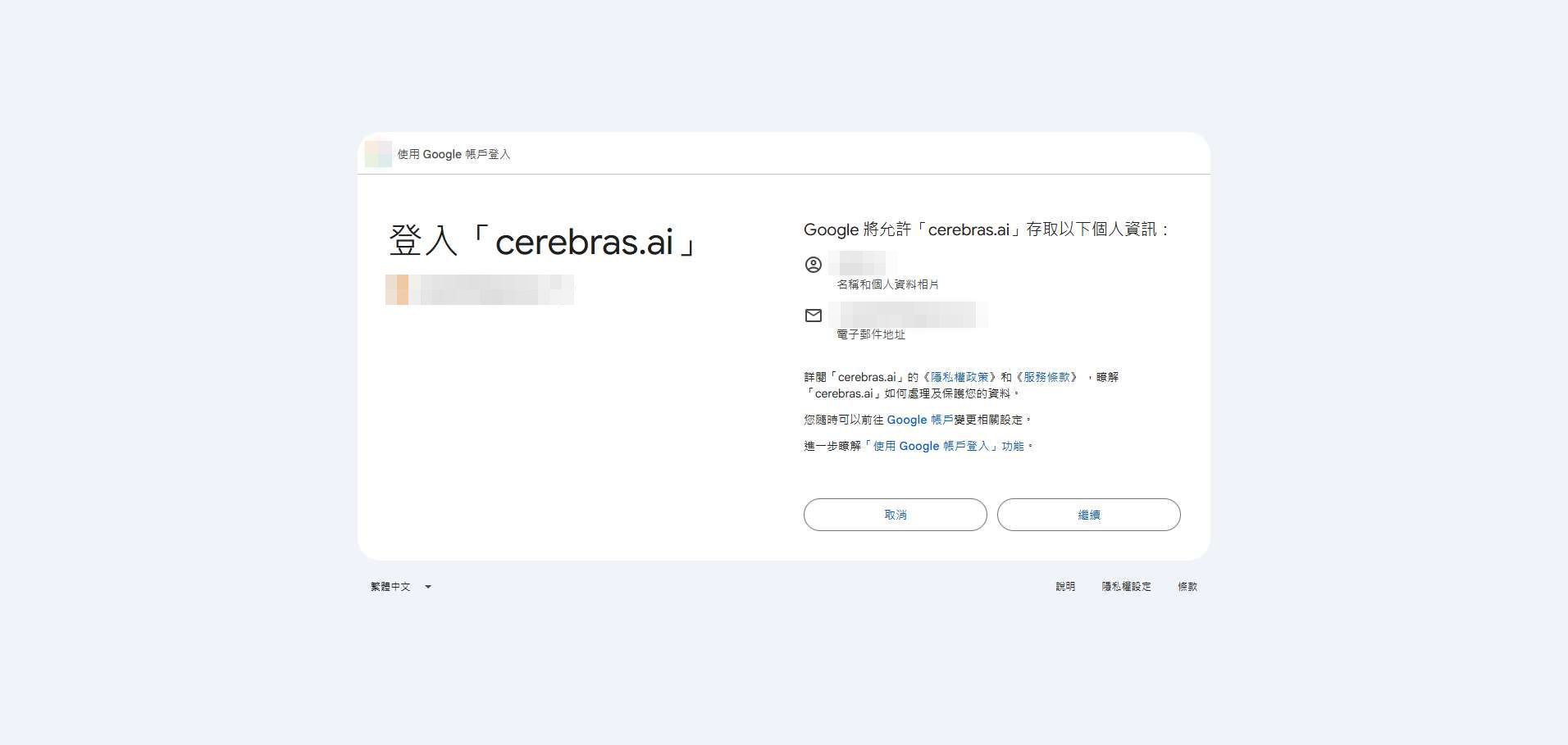
If you ever stop using the service, you can revoke this access anytime under your Google account's "Security → Third-party apps & services".
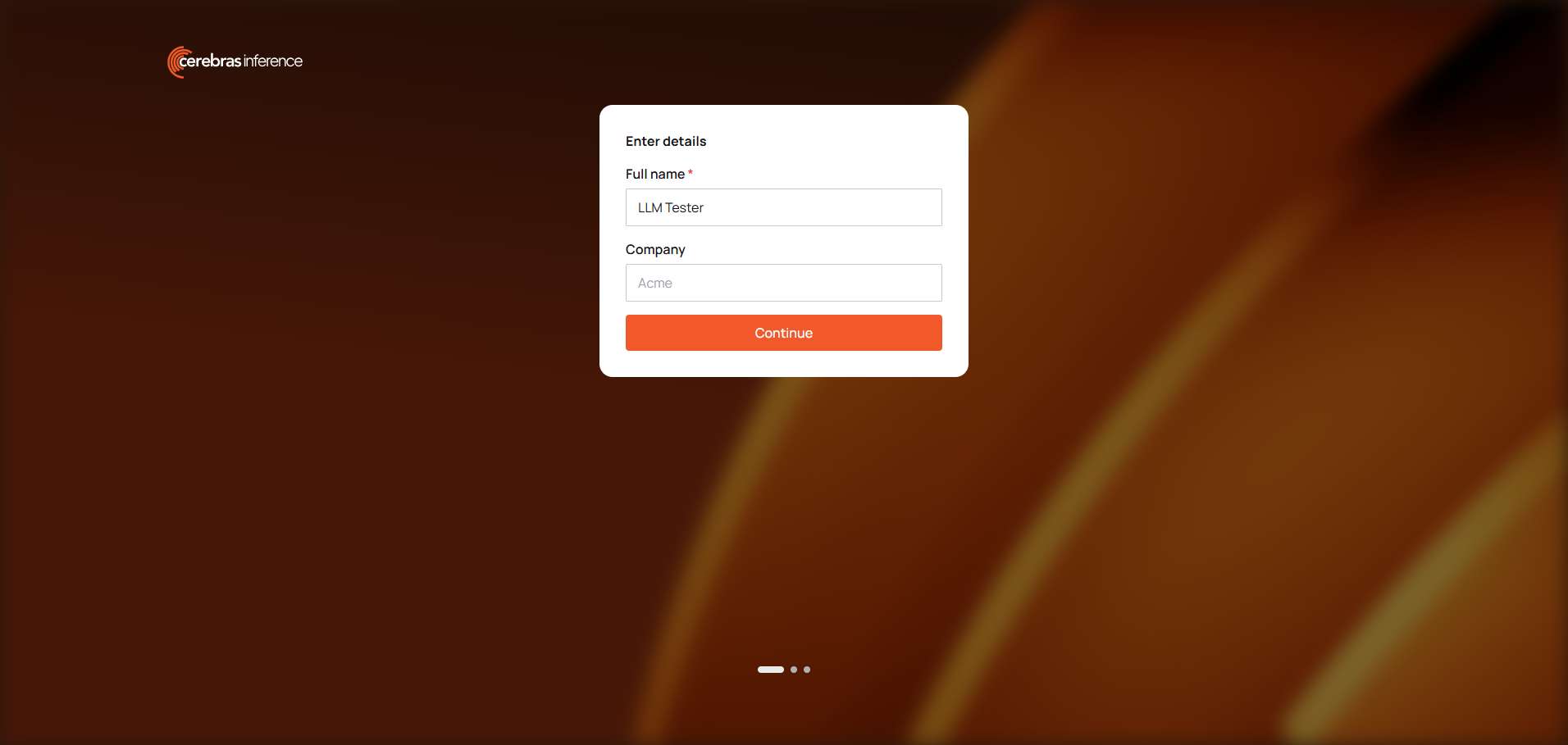
Step 4: Fill in your basic info
On first login you'll see an onboarding page, "Enter details":
- Full name (required): prefilled from your Google profile, and you can change it to anything
- Company (optional): leave it blank for personal testing
Then click Continue.
Step 5: Pick the trial credits and add a card
Next is "Add credits to get started", with two options:
- Pay as You Go: top up $10 and get $5 extra, with higher rate limits and priority
- Start with limited free credits: $5 in trial credits, limited models, low rate limits
For testing, pick Start with limited free credits, then click ADD PAYMENT METHOD and add a payment card as prompted. The $5 only lands after the card is verified; adding the card itself doesn't charge anything.
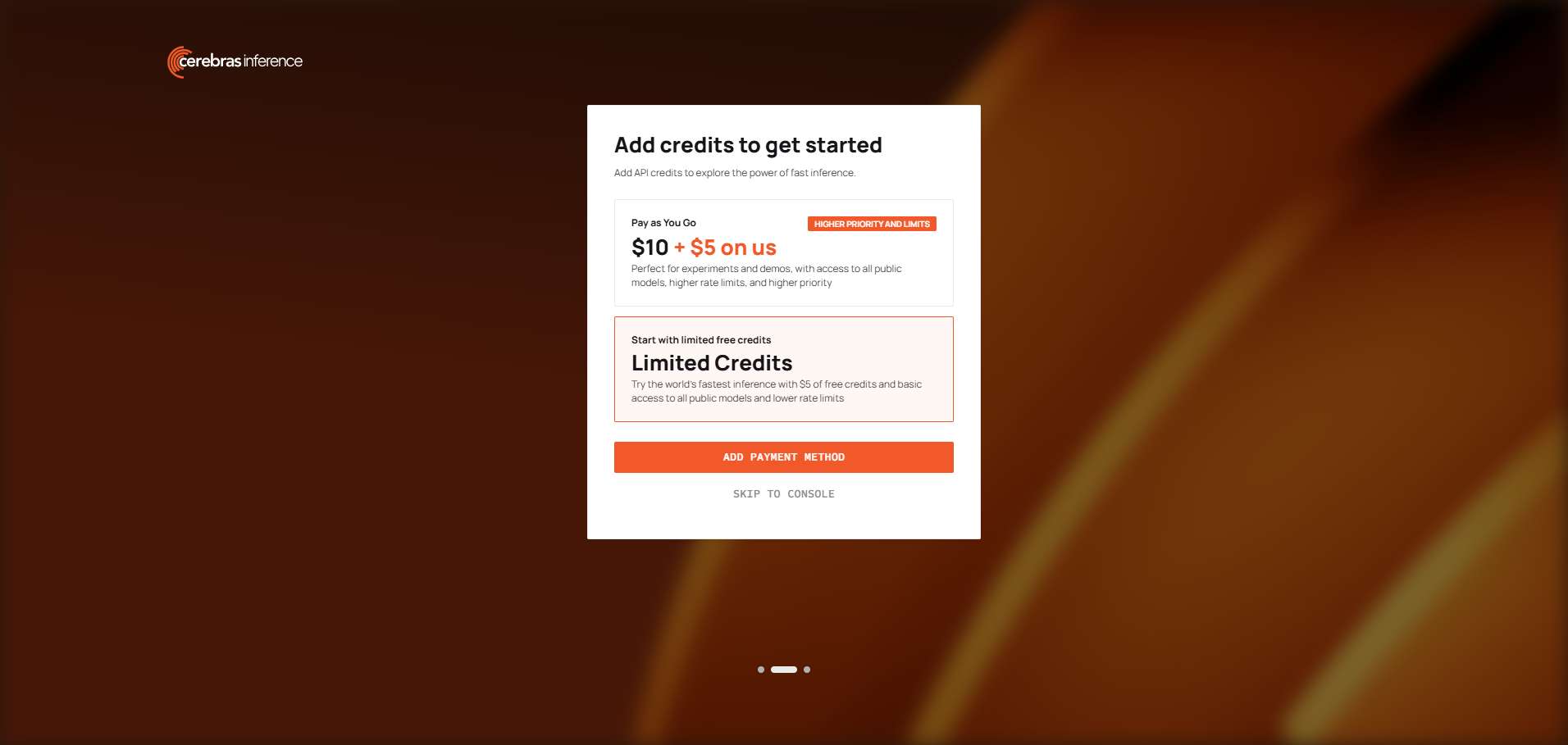
Watch out: the "SKIP TO CONSOLE" link at the bottom lets you skip this step and go straight to the console. Your account and API key work fine, but the account has no credits at all and every call returns 402 Payment required. The option says "free credits" without mentioning that a card is required to issue them, which is easy to misread. If you skipped it, no problem — add a card later on the console's Billing page.
Step 6: Get your API key
Once you're in the console, a "Default Project" has already been created with a default API key:
- On the "Get started" page, click COPY API KEY to copy it directly
- Or open API keys in the left nav to view, create, or delete keys. It's worth creating separate keys per use — "local testing", "project X" — so a leaked key is the only one you have to delete
Cerebras keys start with csk-. Treat the key like your account password: don't paste it into chat groups, screenshots, or public repos; keep it in environment variables or server-side config. If one leaks, delete it on the API keys page and make a new one.
A few other left-nav pages you'll use:
- Billing: add cards, check remaining credits and expiry
- Limits: per-model rate limits for your account. Per the official docs, the trial tier's
gpt-oss-120bandqwen-3.8-27bare both 5 requests/minute and 30k uncached tokens/minute; for other models, trust what's shown here - Analytics: usage stats
Step 7: Make your first request
The API speaks OpenAI's Chat Completions protocol at https://api.cerebras.ai/v1. Put the key in an environment variable first:
export CEREBRAS_API_KEY="csk-your-key"List the models currently available:
curl https://api.cerebras.ai/v1/models \
  -H "Authorization: Bearer $CEREBRAS_API_KEY"
Send a chat message (gpt-oss-120b works on the trial tier; models come and go, so trust the list from the previous step):
curl https://api.cerebras.ai/v1/chat/completions \
  -H "Authorization: Bearer $CEREBRAS_API_KEY" \
  -H "Content-Type: application/json" \
  -d '{
    "model": "gpt-oss-120b",
    "messages": [{"role": "user", "content": "Introduce yourself in one sentence"}]
  }'
For Python, just use the official OpenAI SDK with a different base_url:
from openai import OpenAI
import os

client = OpenAI(
    base_url="https://api.cerebras.ai/v1",
    api_key=os.environ["CEREBRAS_API_KEY"],
)
resp = client.chat.completions.create(
    model="gpt-oss-120b",
    messages=[{"role": "user", "content": "Introduce yourself in one sentence"}],
)
print(resp.choices[0].message.content)
Any client or framework that supports "OpenAI-compatible APIs" (chat clients, LangChain, AI gateways) connects the same way: set the base URL to https://api.cerebras.ai/v1 and the key to your csk- key. If the client has a "provider / protocol" option, make sure to pick Cerebras or enter the base URL above — otherwise your request may go to OpenAI's official endpoint and you'll get an OpenAI 401 back.
Troubleshooting
- 402 Payment required: no usable credits on the account. Either no card was added (the credits were never issued), the credits are used up, or the 30-day validity expired. Add a card or top up on the Billing page.
- 401 Wrong API Key: the key is wrong, has stray whitespace, or was deleted.
- 401 that mentions platform.openai.com: the request never reached Cerebras — it went to OpenAI. Check the base URL or provider setting in your client.
- 429: you hit a rate limit. The trial tier allows only 5 requests per minute, so batch jobs need spacing or retry backoff.
- Model not found: Cerebras adds and retires models. Trust the list from
/v1/models; don't copy model names from old posts.
One last note
The trial credits are there so each developer can try the service. Registering multiple accounts to stack trial credits violates the terms of service — once detected, the accounts get banned together, and in serious cases the Google account used for sign-in can be affected too. One account is plenty for personal testing; if your usage grows, upgrading to paid is less trouble.
For credits, expiry rules, and rate limits, the official docs are the source of truth: Cerebras Rate Limits.